How to export flashcards from Lexilize Flashcards
Lexilize Flashcards exports flashcards as XLSX. You can export your own decks, but not shared decks from other users. Follow the 5 steps below — or scroll down to download a sample export file.
Platform: AndroidOwn decks: YesOthers' decks: NoXLSX
Step-by-step guide
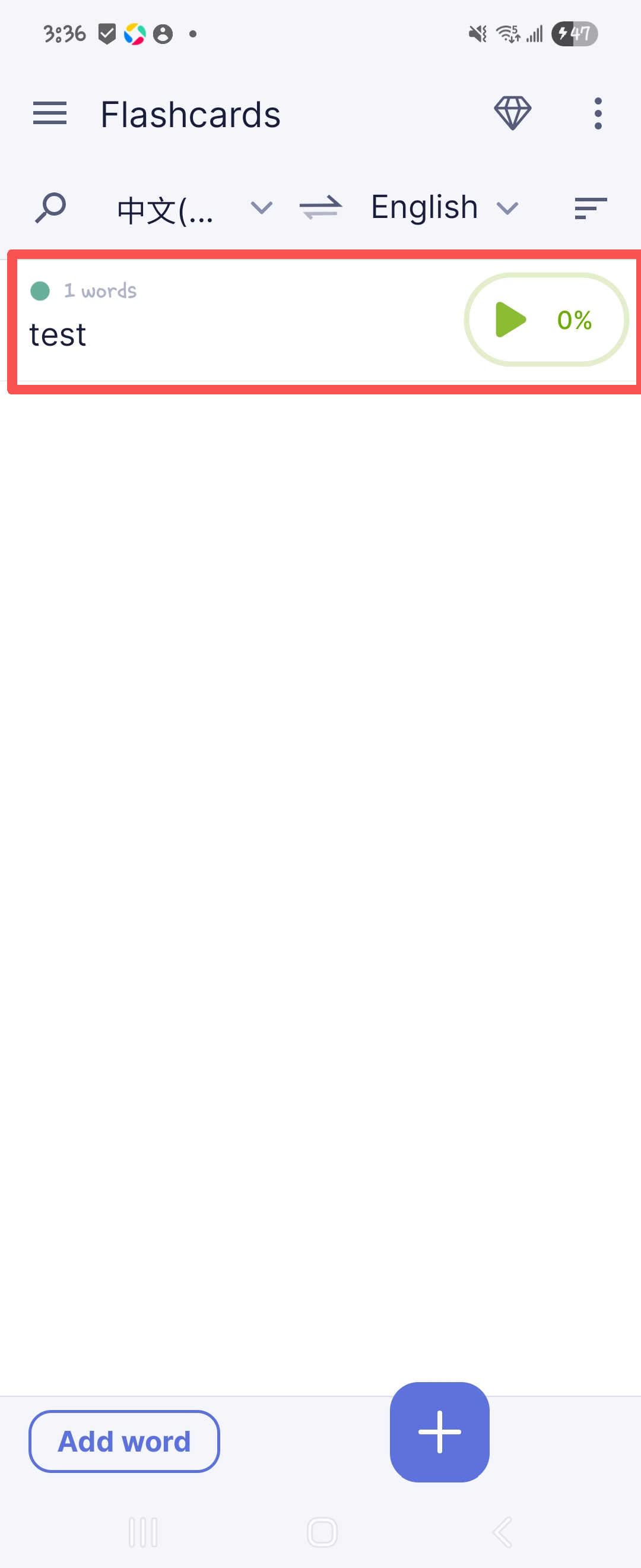
- Long press a flashcard categoryLong press the flashcard category you want to export.
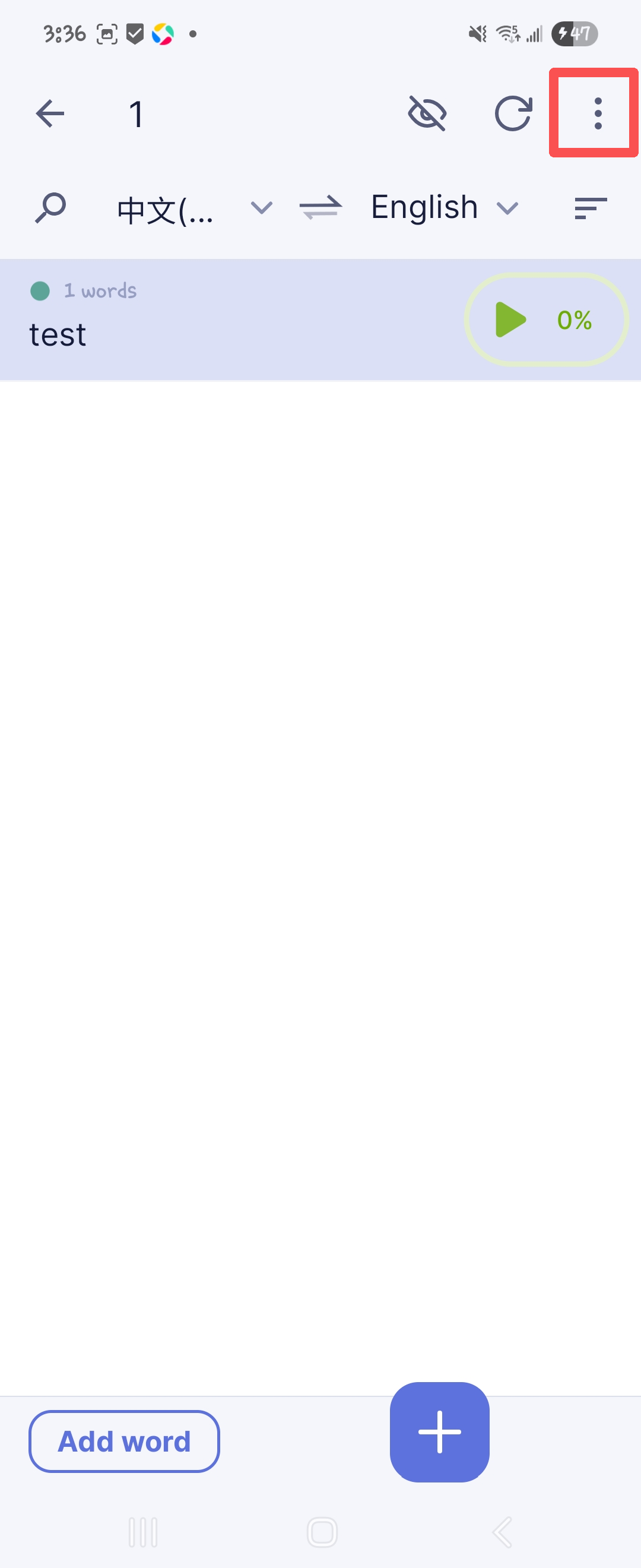
- Open menuTap the three dots (···) in the top right corner.
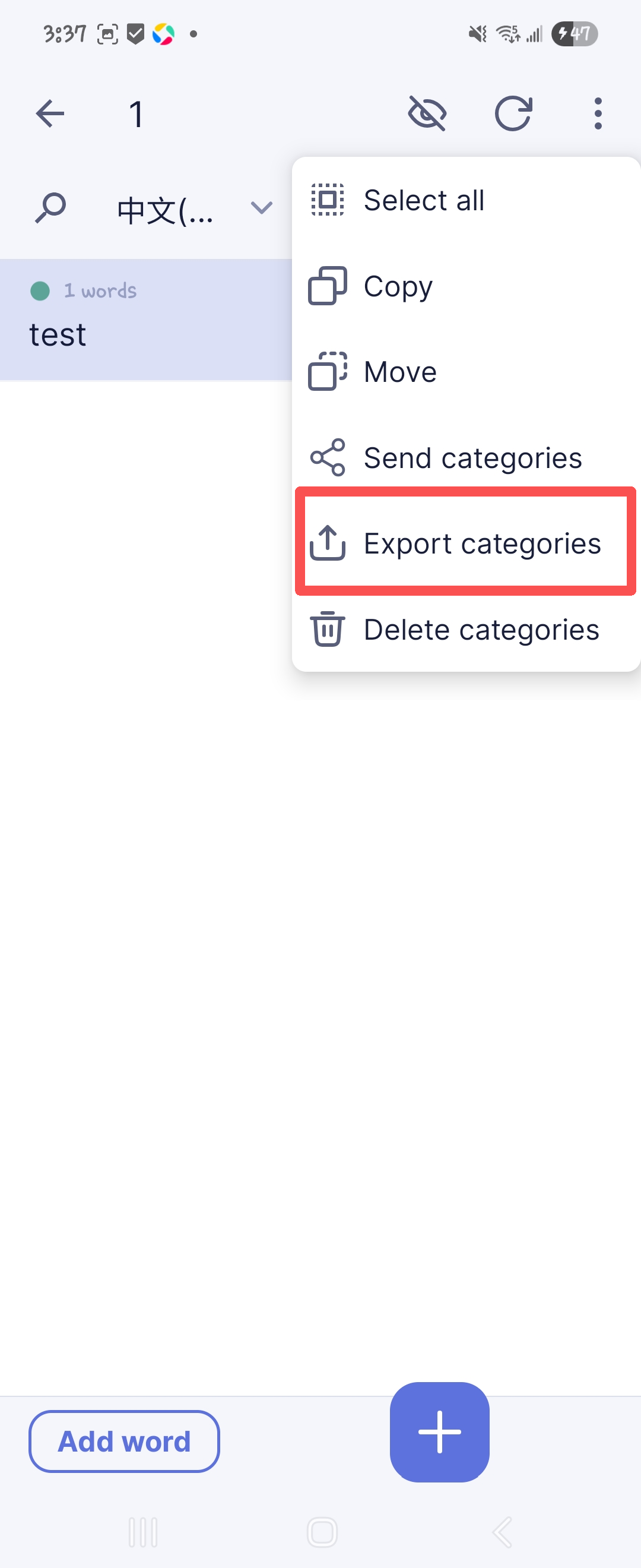
- Tap Export categoriesSelect Export categories.
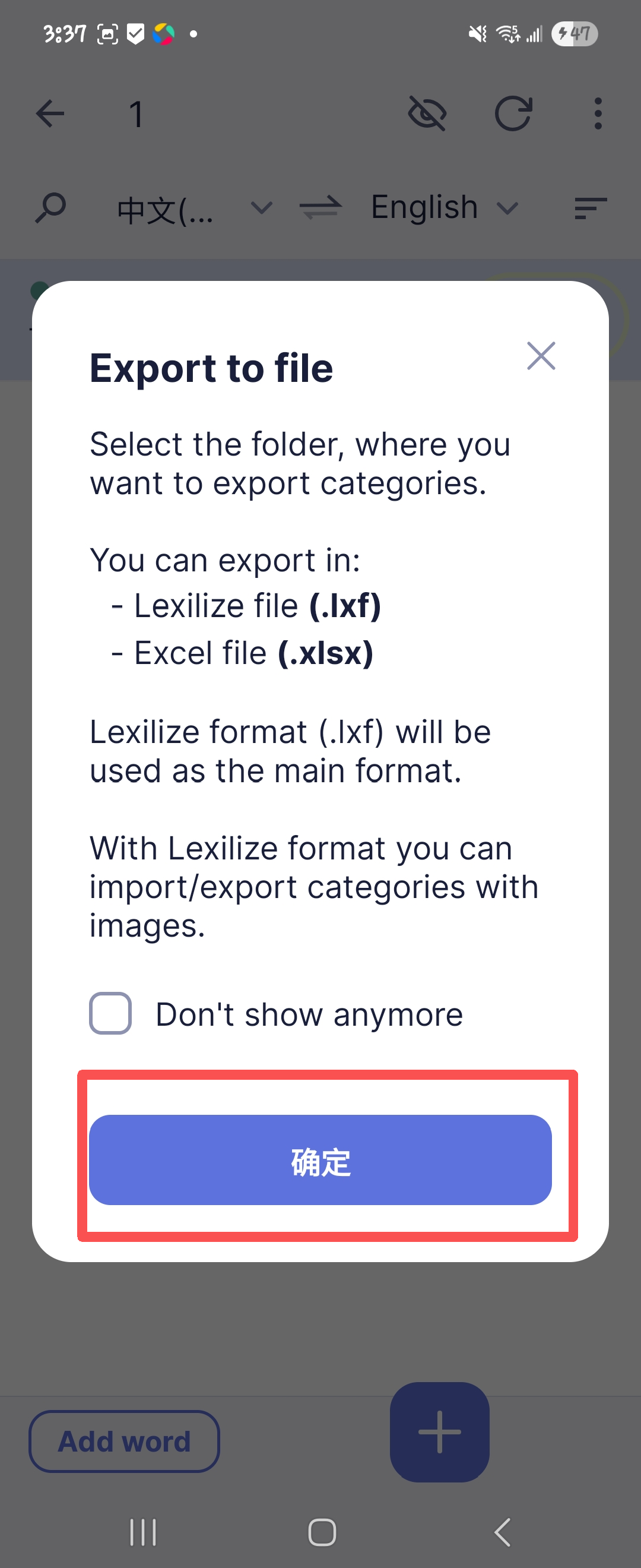
- Confirm export formatTap Confirm.
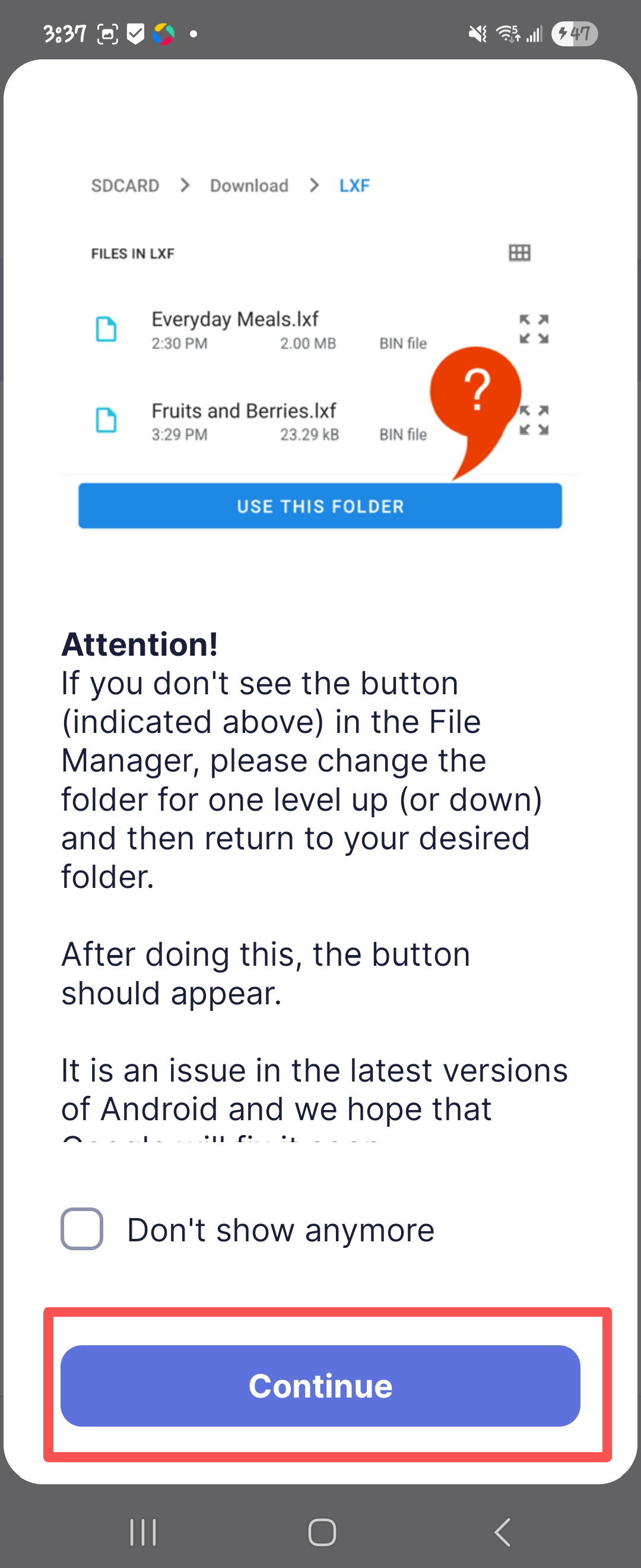
- Choose folder and exportTap Continue to export the file.
Sample export file
Real sample export from Lexilize Flashcards containing 5 English → Spanish flashcards. Inspect the format before exporting your own data.
Get Lexilize Flashcards
Frequently asked questions
What file format does Lexilize Flashcards export to?
Lexilize Flashcards exports your flashcard data as XLSX.
Can I export my own decks from Lexilize Flashcards?
Yes, you can export your own decks from Lexilize Flashcards. See the step-by-step guide above.
Can I export shared or other users' decks from Lexilize Flashcards?
No, Lexilize Flashcards only allows exporting your own decks — shared or other users' decks cannot be exported.
On which platforms is Lexilize Flashcards available?
Lexilize Flashcards is available on Android.
Is there a sample export file I can download?
Yes. A sample export file is available on this page. It contains 5 example flashcards (English → Spanish) so you can inspect the exact format Lexilize Flashcards produces before exporting your own data.
Related export guides
Lexilize Flashcards is a trademark of its respective owner. This page references the app for informational purposes only and is not affiliated with, endorsed by, or sponsored by the makers of Lexilize Flashcards. All screenshots are used under fair use to illustrate the export process.