How to export flashcards from Flash Cards GO - Flashcards
Flash Cards GO - Flashcards exports flashcards as GODECK. You can export your own decks, but not shared decks from other users. Follow the 2 steps below — or scroll down to download a sample export file.
Platform: iOS / AndroidOwn decks: YesOthers' decks: NoGODECK
Step-by-step guide
- Open DecksTap Decks on the top left.
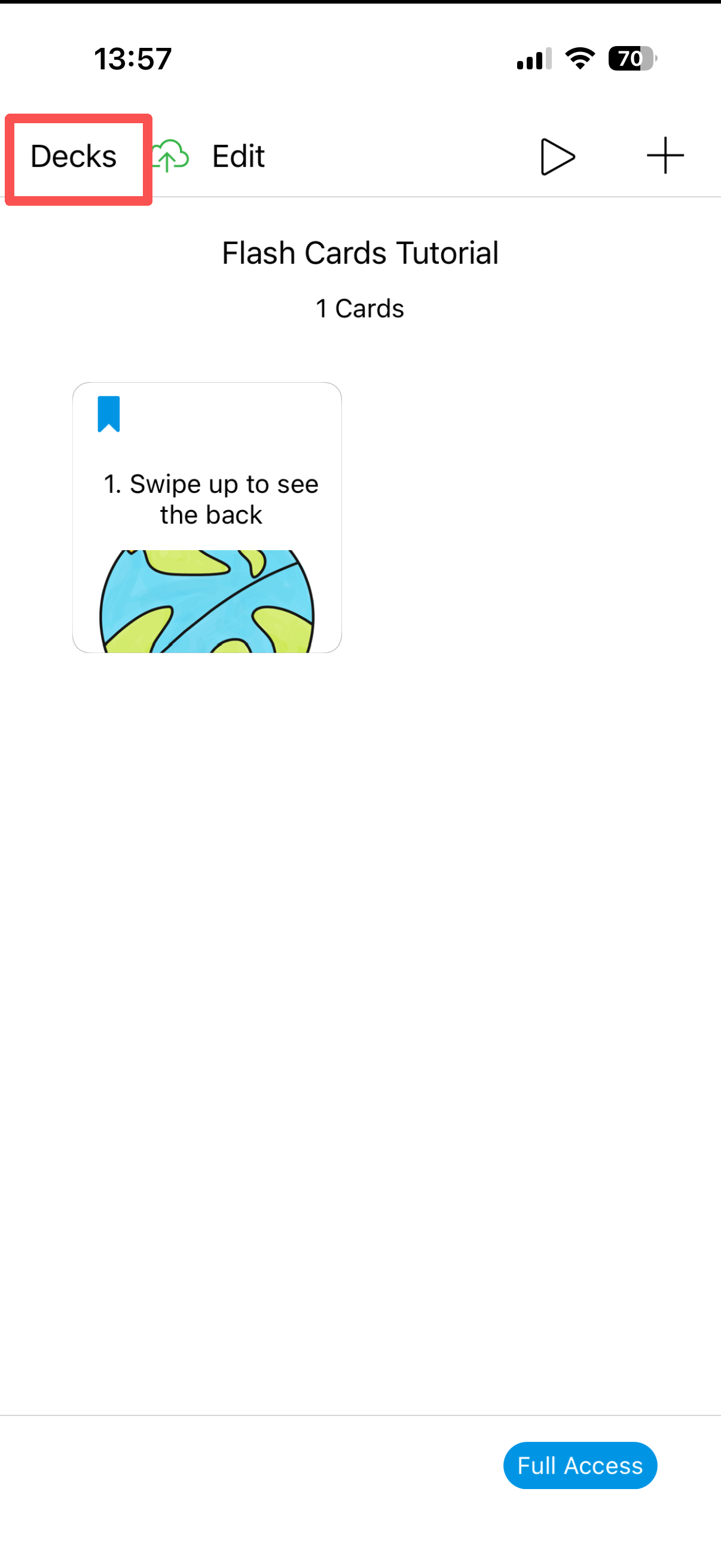
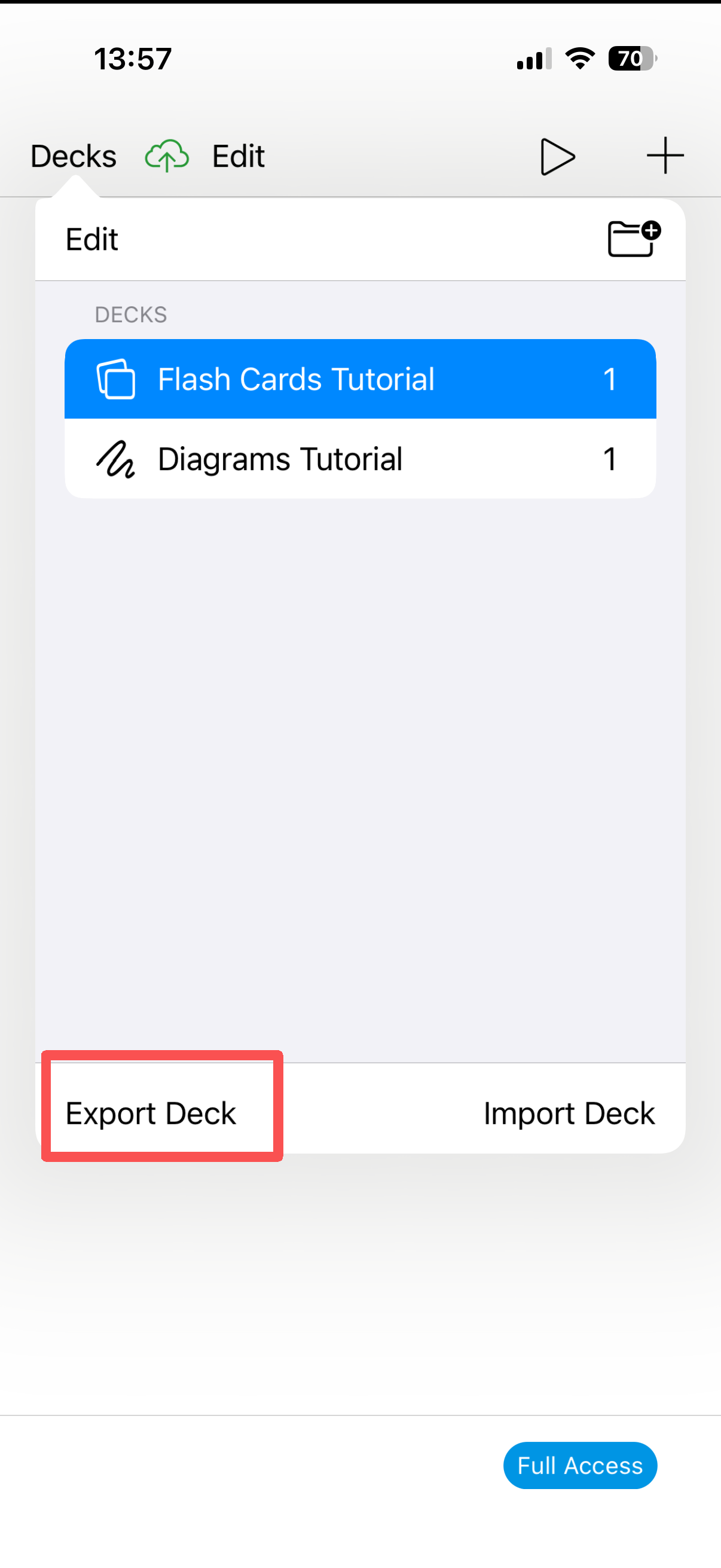
- Export DeckTap Edit, select a deck, then tap Export Deck.
Sample export file
Real sample export from Flash Cards GO - Flashcards containing 5 English → Spanish flashcards. Inspect the format before exporting your own data.
Get Flash Cards GO - Flashcards
Frequently asked questions
What file format does Flash Cards GO - Flashcards export to?
Flash Cards GO - Flashcards exports your flashcard data as GODECK.
Can I export my own decks from Flash Cards GO - Flashcards?
Yes, you can export your own decks from Flash Cards GO - Flashcards. See the step-by-step guide above.
Can I export shared or other users' decks from Flash Cards GO - Flashcards?
No, Flash Cards GO - Flashcards only allows exporting your own decks — shared or other users' decks cannot be exported.
On which platforms is Flash Cards GO - Flashcards available?
Flash Cards GO - Flashcards is available on iOS / Android.
Is there a sample export file I can download?
Yes. A sample export file is available on this page. It contains 5 example flashcards (English → Spanish) so you can inspect the exact format Flash Cards GO - Flashcards produces before exporting your own data.
Related export guides
Flash Cards GO - Flashcards is a trademark of its respective owner. This page references the app for informational purposes only and is not affiliated with, endorsed by, or sponsored by the makers of Flash Cards GO - Flashcards. All screenshots are used under fair use to illustrate the export process.